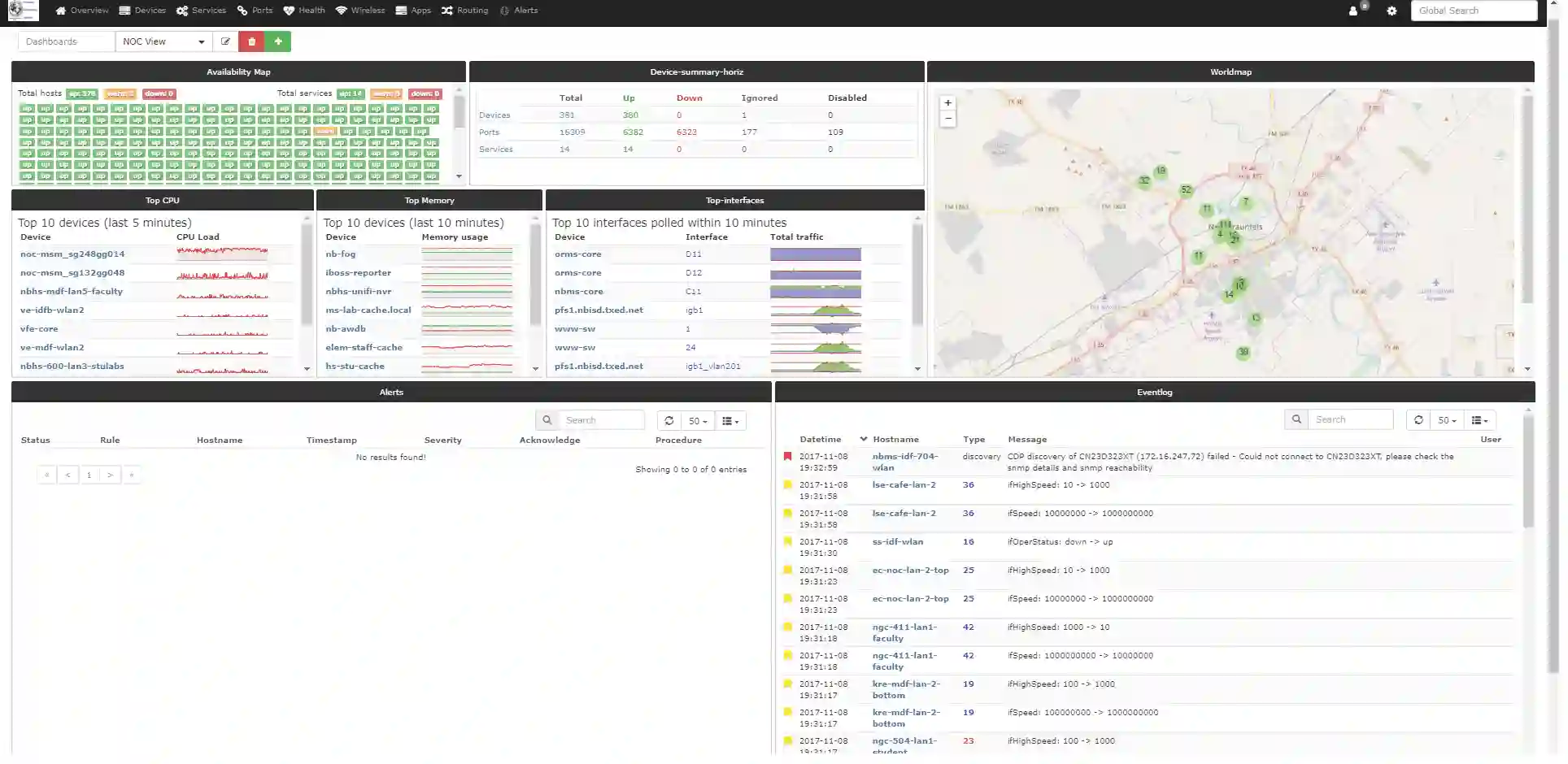
Many developers set up LibreNMS using Docker to monitor infrastructure via SNMP. However, keeping tabs on public or internal websites requires a different approach. LibreNMS can perform HTTP and HTTPS availability checks that function just like a curl command, tracking response times and alerting you if a site drops.
If you deploy LibreNMS using the official distributed microservices topology, you will run into a couple of specific configuration hurdles. This guide walks you through a complete, end-to-end setup using a standard Docker Compose stack, explains where the monitoring plugins live inside the official image, and clears up a commonly misunderstood check_http argument that trips people up.
1. The Core Distributed Docker Compose Setup
When you pull down the official master configurations for LibreNMS, the architecture splits roles into separate microservices to scale efficiently.
Here is the baseline compose.yml file used for this deployment. Save this file as compose.yml in your working directory:
name: librenms

services:
  db:
    image: mariadb:10
    container_name: librenms_db
    command:
      - "mysqld"
      - "--innodb-file-per-table=1"
      - "--lower-case-table-names=0"
      - "--character-set-server=utf8mb4"
      - "--collation-server=utf8mb4_unicode_ci"
    volumes:
      - "./db:/var/lib/mysql"
    environment:
      - "TZ=${TZ}"
      - "MARIADB_RANDOM_ROOT_PASSWORD=yes"
      - "MYSQL_DATABASE=${MYSQL_DATABASE}"
      - "MYSQL_USER=${MYSQL_USER}"
      - "MYSQL_PASSWORD=${MYSQL_PASSWORD}"
    restart: always

  redis:
    image: redis:7.2-alpine
    container_name: librenms_redis
    environment:
      - "TZ=${TZ}"
    restart: always

  msmtpd:
    image: crazymax/msmtpd:latest
    container_name: librenms_msmtpd
    env_file:
      - "./msmtpd.env"
    restart: always

  librenms:
    image: librenms/librenms:latest
    container_name: librenms
    hostname: librenms
    cap_add:
      - NET_ADMIN
      - NET_RAW
    ports:
      - target: 8000
        published: 8000
        protocol: tcp
    depends_on:
      - db
      - redis
      - msmtpd
    volumes:
      - "./librenms:/data"
    env_file:
      - "./librenms.env"
    environment:
      - "TZ=${TZ}"
      - "PUID=${PUID}"
      - "PGID=${PGID}"
      - "DB_HOST=db"
      - "DB_NAME=${MYSQL_DATABASE}"
      - "DB_USER=${MYSQL_USER}"
      - "DB_PASSWORD=${MYSQL_PASSWORD}"
      - "DB_TIMEOUT=60"
    restart: always

  dispatcher:
    image: librenms/librenms:latest
    container_name: librenms_dispatcher
    hostname: librenms-dispatcher
    cap_add:
      - NET_ADMIN
      - NET_RAW
    depends_on:
      - librenms
      - redis
    volumes:
      - "./librenms:/data"
    env_file:
      - "./librenms.env"
    environment:
      - "TZ=${TZ}"
      - "PUID=${PUID}"
      - "PGID=${PGID}"
      - "DB_HOST=db"
      - "DB_NAME=${MYSQL_DATABASE}"
      - "DB_USER=${MYSQL_USER}"
      - "DB_PASSWORD=${MYSQL_PASSWORD}"
      - "DB_TIMEOUT=60"
      - "DISPATCHER_NODE_ID=dispatcher1"
      - "SIDECAR_DISPATCHER=1"
    restart: always

  syslogng:
    image: librenms/librenms:latest
    container_name: librenms_syslogng
    hostname: librenms-syslogng
    cap_add:
      - NET_ADMIN
      - NET_RAW
    depends_on:
      - librenms
      - redis
    ports:
      - target: 514
        published: 514
        protocol: tcp
      - target: 514
        published: 514
        protocol: udp
    volumes:
      - "./librenms:/data"
    env_file:
      - "./librenms.env"
    environment:
      - "TZ=${TZ}"
      - "PUID=${PUID}"
      - "PGID=${PGID}"
      - "DB_HOST=db"
      - "DB_NAME=${MYSQL_DATABASE}"
      - "DB_USER=${MYSQL_USER}"
      - "DB_PASSWORD=${MYSQL_PASSWORD}"
      - "DB_TIMEOUT=60"
      - "SIDECAR_SYSLOGNG=1"
    restart: always

  snmptrapd:
    image: librenms/librenms:latest
    container_name: librenms_snmptrapd
    hostname: librenms-snmptrapd
    cap_add:
      - NET_ADMIN
      - NET_RAW
    depends_on:
      - librenms
      - redis
    ports:
      - target: 162
        published: 162
        protocol: tcp
      - target: 162
        published: 162
        protocol: udp
    volumes:
      - "./librenms:/data"
    env_file:
      - "./librenms.env"
    environment:
      - "TZ=${TZ}"
      - "PUID=${PUID}"
      - "PGID=${PGID}"
      - "DB_HOST=db"
      - "DB_NAME=${MYSQL_DATABASE}"
      - "DB_USER=${MYSQL_USER}"
      - "DB_PASSWORD=${MYSQL_PASSWORD}"
      - "DB_TIMEOUT=60"
      - "SIDECAR_SNMPTRAPD=1"
    restart: always
Understanding Your Persistent Data
Before launching, notice that the database uses a host volume mount: ./db:/var/lib/mysql. This tells Docker to save all database configurations and user modifications inside a folder right on your host hard drive. You can restart, upgrade, or destroy these containers without losing any of your configuration history or dashboard records.
Bring up your stack by running:
docker compose up -d
2. Enabling Web Services via CLI
In older installations of LibreNMS, administrators turned on website checks through the web dashboard menus. Modern versions have migrated these core variables to the database, accessible via the integrated command line utility.
The official image ships the monitoring plugins inside the container already, but LibreNMS needs to be told exactly where to find them. The key detail here is the path: the official LibreNMS image is based on Alpine Linux, which installs the monitoring-plugins package to /usr/lib/monitoring-plugins/. This differs from a Debian or Ubuntu host, where the same plugins typically live at /usr/lib/nagios/plugins/. If you have followed Debian-based guides before, this path difference is the first thing that bites you.
Run these two commands on your host terminal to update the internal application parameters:
# Point LibreNMS to the image's monitoring plugin directory
docker exec -it librenms lnms config:set nagios_plugins /usr/lib/monitoring-plugins/

# Globally activate the Services user interface menu
docker exec -it librenms lnms config:set show_services true
Tip: Image layouts can change between versions. Before trusting the path above, confirm it for your own image with
docker exec -it librenms ls /usr/lib/monitoring-plugins/and look forcheck_http. The manual test in Section 4 also serves as a verification step.
Log out of your web browser session and log back in. A new Services menu will appear along the main navigation bar.
3. Getting the check_http Parameters Right
LibreNMS triggers website queries using a background plugin named check_http, which comes from the standard monitoring-plugins project. A common myth is that the syntax below is some kind of “Alpine quirk.” It is not. check_http parses its arguments with standard getopt, and it behaves identically on Alpine, Debian, Ubuntu, or anywhere else. What actually trips people up is one flag that requires a value but is often written as if it were a standalone switch.
The -f flag needs an argument
The -f flag is shorthand for --onredirect, and it controls what the plugin does when the server returns a redirect. It is not a bare on/off switch — it always expects a value. Valid values are ok, warning, critical, follow, sticky, and stickyport.
If you write something like -f -p 443, getopt treats the next token (-p) as the value you intended to pass to -f, and the plugin crashes with:
check_http: Invalid onredirect option - -p
The fix is simply to give -f its value explicitly. To follow redirects, use -f follow.
Flag order does not matter
You may have read that -f follow “must go at the very end” of the parameter string. That is a misunderstanding of the error above. getopt does not care about the order of options — the only requirement is that the value follow immediately follows -f, because that is the argument belonging to that flag. All of these are equivalent and work fine:
-H example.com -p 443 --sni -S -f follow
-H example.com -f follow -p 443 --sni -S
A working HTTPS check
To ensure your target handles Server Name Indication (SNI) and wraps the exchange in a proper TLS handshake — instead of returning a raw HTTP 400 Bad Request — use a pattern like this. Replace example.com with your own domain.
-H example.com -p 443 --sni -S -f follow
Command Parameter Breakdown
-H example.com: The hostnamecheck_httpconnects to. It is also used for the HTTPHostheader and for SNI matching, so it should be the actual domain you want to test (swap in your own).-p 443: Directs the connection to secure port 443.--sni: Enables Server Name Indication so the target presents the correct host certificate for your domain. This matters on any server hosting multiple TLS sites behind one IP.-S: Forces a TLS/SSL connection rather than plain HTTP.-f follow: Sets the redirect behavior to follow redirects. The valuefollowmust come directly after-f; the flag’s position in the overall string is otherwise irrelevant.
4. Running a Manual Execution Test
Because this stack uses a distributed microservices footprint, the main web container (librenms) only processes user dashboard interactions. The actual network pollers and heavy cron processes run inside the dedicated dispatcher container (librenms_dispatcher).
You can manually trigger a check directly inside the dispatcher environment to confirm everything functions before saving your configuration in the graphical dashboard. This also doubles as a way to verify the plugin path from Section 2.
Execute this test command on your host:
docker exec -it librenms_dispatcher /usr/lib/monitoring-plugins/check_http -H example.com -p 443 --sni -S -f follow
A healthy connection will print a success message to your terminal:
HTTP OK: HTTP/1.1 200 OK - 6355 bytes in 0.105 second response time
5. Adding the Endpoint Check in the Dashboard
Now that the parameters are verified, you can commit the check to your running instance.
- Navigate to the LibreNMS Web Dashboard.
- Select your target device or choose your localhost engine entry.
- Click the Services tab on the sub-navigation row and press Add Service.
- Configure the form with these details:
- Check Type:
http - IP Address / Remote Host: Leave this field completely blank. Because your
-Hparameter already supplies the hostname thatcheck_httpconnects to, filling in a URL or host here will corrupt the runtime execution string. - Description:
Website HTTPS Check - Parameters: Paste the verified functional string (with your own domain):
-H example.com -p 443 --sni -S -f follow
- Check Type:
- Click Save.
The background dispatcher container will pick up your new configuration during its regular checking cycle, flip the dashboard indicator to green, and begin graphing latency metrics.
Additional Resources
For further information regarding advanced parameters or to explore more options for custom notifications, consult the Official LibreNMS Documentation.