
Recently, I encountered an issue where my Macbook was running out of space due to SystemData having a size exceeding 300 Gigabytes. If you’re encountering a similar issue, my specific issue had to do with a failed backup that didn’t resolve itself.
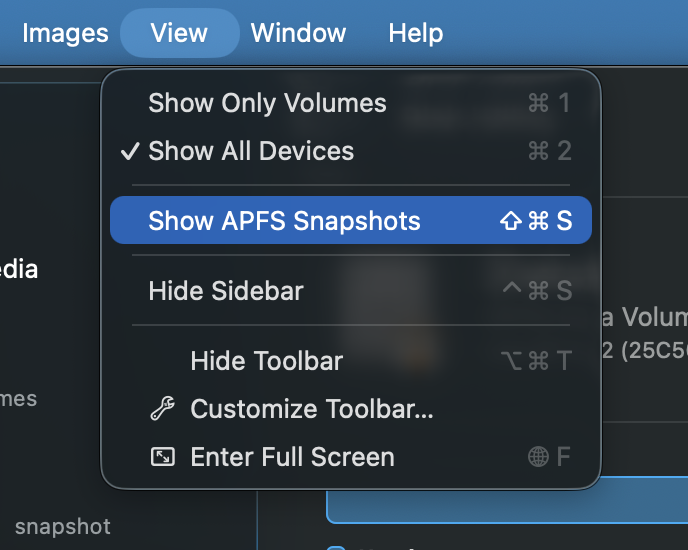
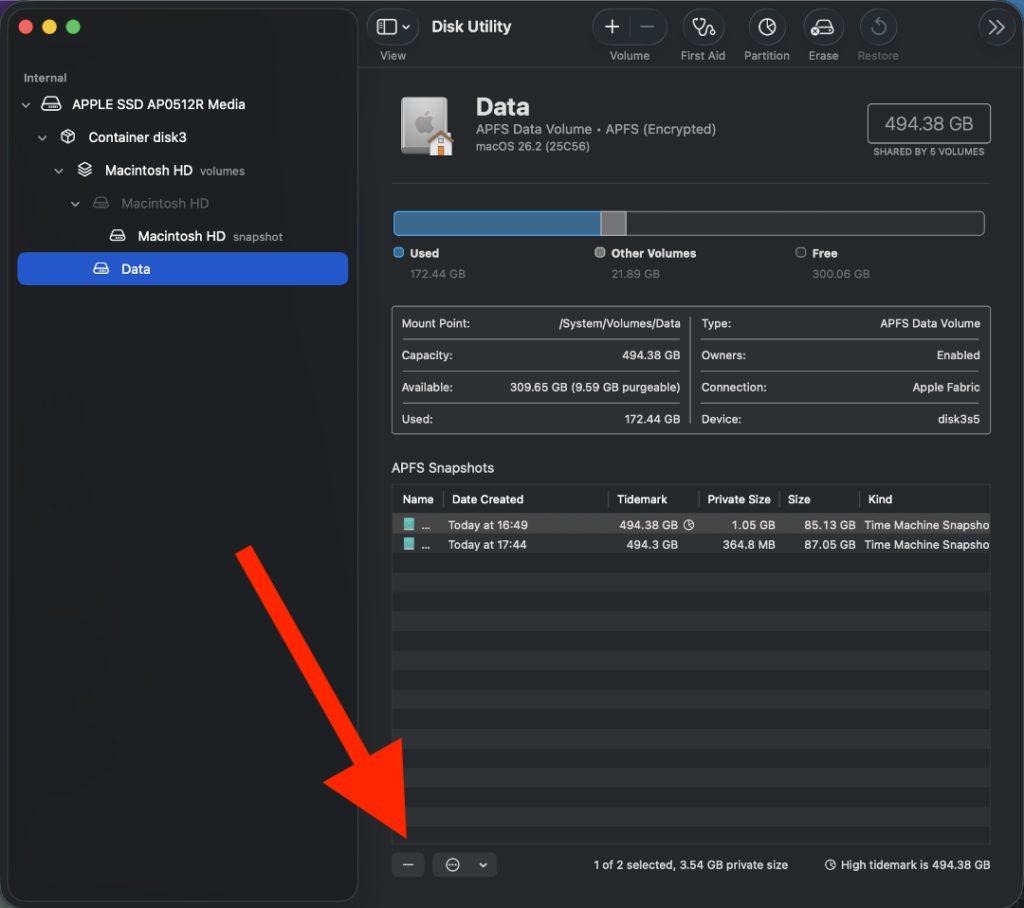
If you open the Disk Utility, on the left side you can click on Data. At the top of your browser, select Show APFS Snapshots. This will display the Snapshots on the Disk Utility GUI.
With the APFS Snapshots visible, click on the ‘-‘ (minus) sign on any APFS Snapshot that looks old. In my case, I had a snapshot that was over 2 months old that didn’t delete itself. Since I’ve had multiple snapshots created since that time that successfully saved to my backup locations, it was safe to delete.
Once Deleted, you should now have some more space available on your computer.